by Marcuz-apl | 23 Nov 2024
Intro
Creating partitions for ESP (EFI System Partition) and ext4 using parted involves several steps. This guide assumes you are using a GPT partition table, which is standard for UEFI systems. Replace /dev/sdX with your actual disk device (e.g., /dev/sdc).
Operations
Step 1- Set the partition type: gpt or msdos
Start parted and set the partition table type to GPT by using command mklabel:
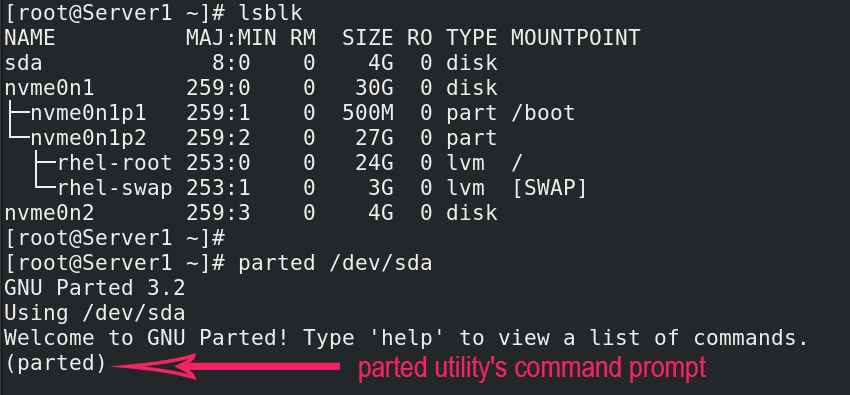
sudo parted /dev/sdX
(parted) mklabel gpt
Step 2- Create the EFI System Partition (ESP)
The recommended size for an ESP is at least 1 GiB. And it must be formatted as FAT32.
(parted) mkpart "EFI" fat32 1MiB 1025MiB
(parted) set 1 esp on
mkpart "EFI" fat32 1MiB 1025MiB: Creates a partition named "EFI", specifies its file system type asfat32, and defines its start and end points (1 MiB to 1025 MiB).set 1 esp on: Sets theespflag on partition number 1, marking it as the EFI System Partition.
Step 3- Create the ext4 partition for hosting the Linux OS and data
This example creates a single ext4 partition using the remaining space. Adjust the start and end points as needed for multiple partitions (e.g., separate /, /home).
(parted) mkpart "system" ext4 1025MiB 100%
mkpart "system" ext4 1025MiB 100%: Creates a partition named "system", specifies its file system type asext4, and defines its start and end points (from 1025 MiB to the end of the disk).
Step 4- Verify the partitions and free space
Check the partitions:
(parted) print
This command displays the current partition table, allowing you to confirm the newly created partitions. The output belike:
Model: VMware, Vmware Virtual S (scsi)
Disk /dev/sdc: 137GB
Sector size (logical/physical): 512B/512B
Partition Table: gpt
Disk Flags:

Number	Start	End		Size	File system	Name	Flags
 1		1049kB	1075MB	1074MB				efi		boot,esp
 2		1075MB	137GB	136GB	ext4		system
Check the free spaces:
(parted) print free
Step 5- Exit parted
(parted) quit
Step 6- Format the partitions
After creating the partitions with parted, you need to format them with the respective file systems.
lsblk /dev/sdX                  # For Listing the partitions
sudo mkfs.fat -F 32 /dev/sdX1   # For the ESP
sudo mkfs.ext4 /dev/sdX2        # For the ext4 partition
- Replace
/dev/sdX1and/dev/sdX2with the correct partition numbers for your ESP and ext4 partitions, respectively (e.g.,/dev/sdc1,/dev/sdc2).
Important Notes
- Data Loss: Modifying partitions can lead to data loss. Ensure you are working on the correct disk and have backups of any critical data.
- Partition Numbering:
partedautomatically assigns partition numbers. Useprintto confirm them before formatting. - Alignment:
partedtypically handles optimal alignment by default with GPT.